
Can’t find your LG remote input button, or not sure how to use it?
This is one of the most important buttons on your LG TV, especially when switching between devices like HDMI, Roku, or game consoles.
In this guide, you’ll learn exactly where the LG remote input button is located, how to use it to change input sources, and what to do if the button is not working.
Whether you're setting up a new device or troubleshooting a remote issue, this guide will help you switch inputs quickly and easily.
Where Is the Input Button on LG Remote
The LG remote input button location can vary depending on the remote model, but it’s usually easy to identify once you know what to look for.
Input Button on Standard LG Remote
On most standard LG TV remotes, the Input button is located near the top of the remote, typically next to the Power button.
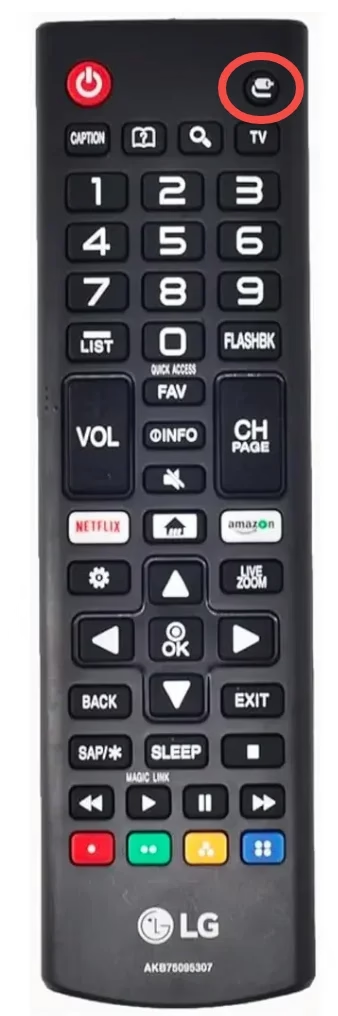
It is usually represented by an icon that looks like:
Input Button on LG Magic Remote
On the LG Magic Remote, the layout is slightly different.
The Input button is usually located below the directional pad (near the center of the remote) and may not always be labeled with text.
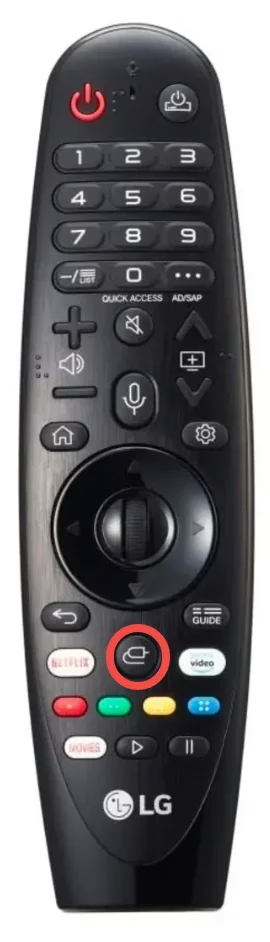
Instead, it is identified by the same input/source icon.
How to Identify the Input Button on Any LG Remote
If you’re using a different LG remote model and can’t find the Input button, use these quick tips:
If you're still unsure about your remote layout, you can check this complete guide to LG remote button functions.
Once you recognize the icon, finding the Input button becomes much easier, even across different LG remote models.
What Does the Input Button Do on LG Remote
The LG remote input button function allows you to switch between different input sources connected to your TV.
When you press the button, a source menu will appear showing all available devices, such as:
You can then select the device you want to use.
When you Need to Use the Input Button
You’ll use this button whenever you:
For example, after connecting a Roku device, press the Input button and select the correct HDMI port to start streaming.
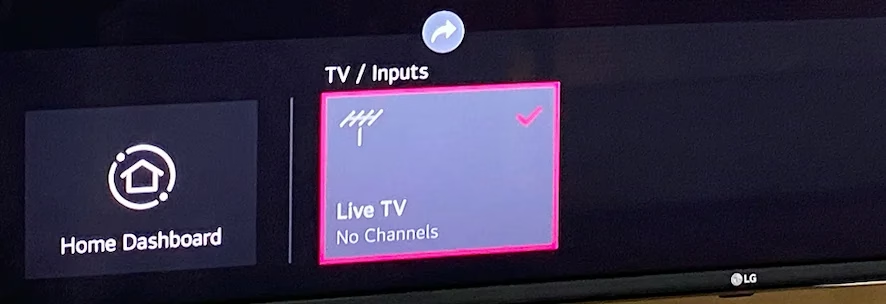
How to Troubeleshoot LG Remote Input Button Not Working
If the Input button on your LG remote is not working, you can still switch input sources using alternative methods, no need to worry.
Before replacing your remote, try the following solutions.
Fix 1: Use a Mobile Remote App (Fastest Solution)
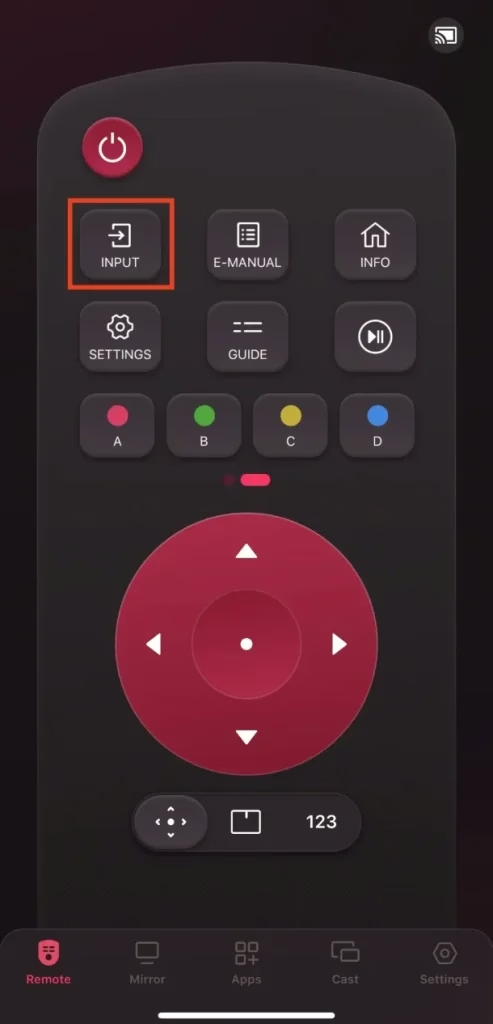
The easiest way to change input without a working button is to use an LG TV remote app on your smartphone.
With a mobile remote app, you can:
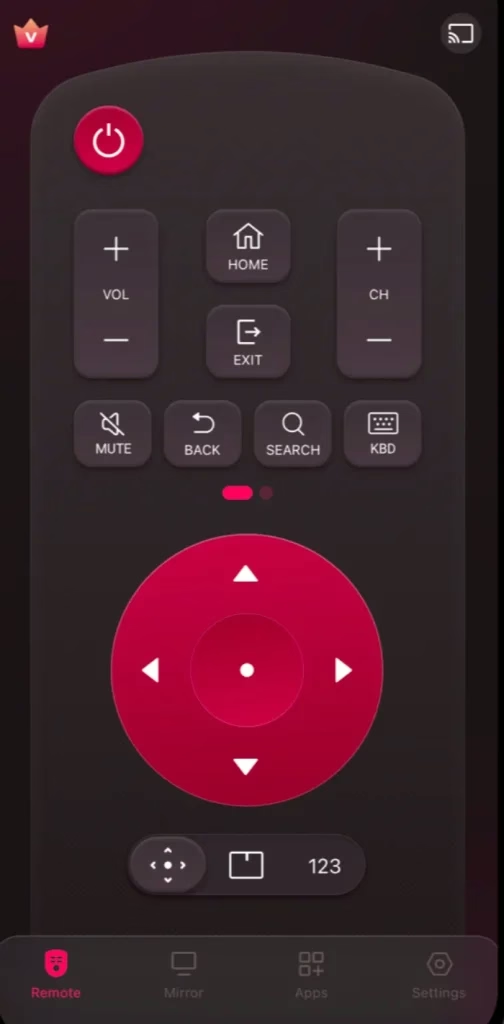
How to change input using the LG remote app:
Step 1. Make sure your smartphone and LG TV are connected to the same Wi-Fi network. Then connect the remote app to your LG TV.
Step 2. Open the app and swipe to access the Input button (usually shown as a rectangle with an arrow icon).
Step 3. Tap the Input button and select the device or HDMI source you want to use.
Fix 2: Check your remote and batteries
If you prefer using the physical remote, try these quick checks:
Fix 3: Use the TV’s physical control button
Most LG TVs have a built-in control button or joystick.
You can:
This is useful if your remote is completely unresponsive.
Pro tip: If the Input button seems unresponsive, try pressing it multiple times or holding it briefly — sometimes delayed response is caused by low battery power or signal issues.
Conclusion
LG remote input button has different locations on different types of LG TV remotes. You can quickly locate it on your LG TV remote by finding an icon similar to an AV cord. Then, you can press the button to switch to a different input source to expand your entertainment hub. If the input button or the LG TV remote doesn't work, you can use the LG TV Remote application from BoostVision to access the input source list.
LG Remote Input Button FAQ
Q: What is the input button on an LG TV remote?
The input button allows you to switch between different input sources connected to the LG TV. It is typically represented by an icon similar to an AV cord.
Q: How to change HDMI input on LG TV?
inputbutton on the LG TV remote. - Choose
HDMI(1, 2, or 3) based on your actual demands. - Press the
OKbutton to confirm.
Q: Where is the LG remote input button on Magic Remote models?
It is typically near the lower-middle key area and may be represented by an input icon instead of the full word 'Input'.
Q: Can I change HDMI input on LG TV without a working remote?
Yes. Use the TV's physical control button/joystick to open the source list, then select the desired HDMI port.
Q: Why does the input list open and close immediately?
A stuck key, low battery power, or Bluetooth lag can cause this. Replace batteries and test with clear line-of-sight and stable TV response.
Q: Does LG webOS version affect input menu behavior?
Yes. Newer webOS versions may show a different input panel style, but the core source-switching function remains the same.
 Mar 23, 2026